App tour
Sleep peacefully. Arrive confidently.
DozeAlert is a commute alarm for riders who want to rest without missing where they need to get off. Use Transit Mode on supported agencies with stop-by-stop progress, or turn it off and wake by distance for taxi, Uber, and other rides. Available on Android via Google Play (with Wear OS) and on iPhone via the App Store (with Apple Watch companion). No account required — trip data stays on your device.
iPhone
The same trip-first experience on iOS — pick a transit stop or map pin, start monitoring, and wake before you arrive. Download from the App Store; the build also includes the Apple Watch companion.
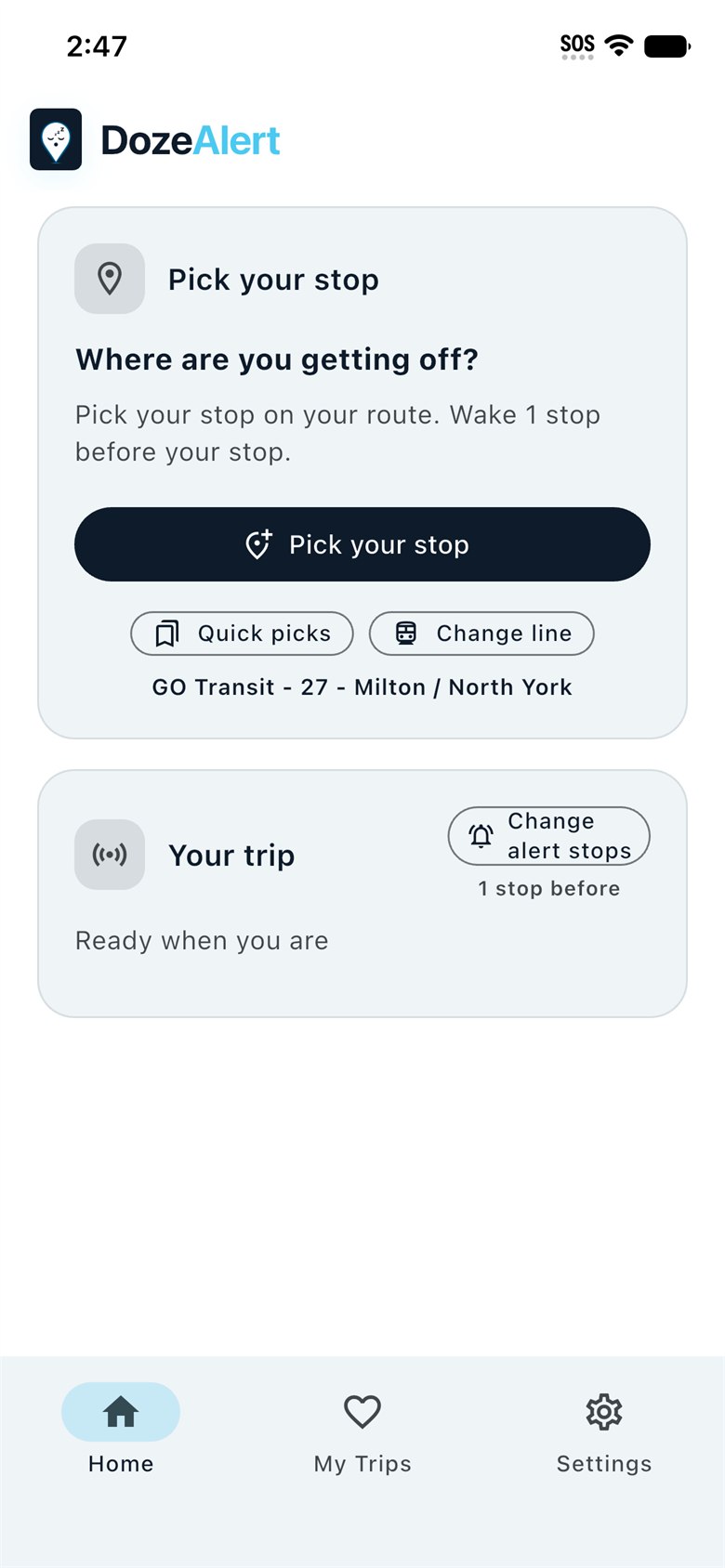
Pick your stop on Home
Choose where you get off, confirm your line, set how many stops early to wake, then tap Start. Lock your phone — DozeAlert keeps watching in the background.
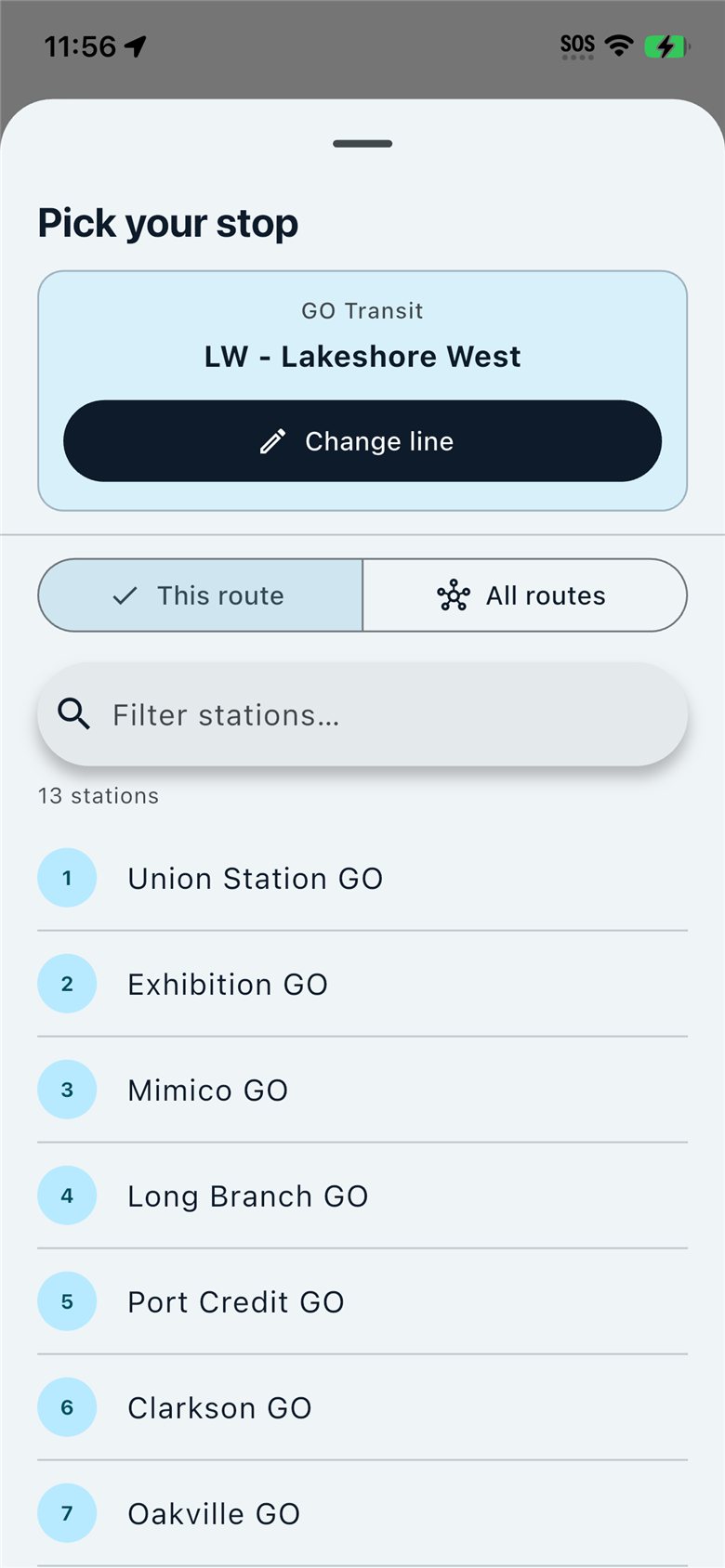
Station lists on your route
Browse or filter stations for the line you selected. Switch agencies or lines anytime with Change line.
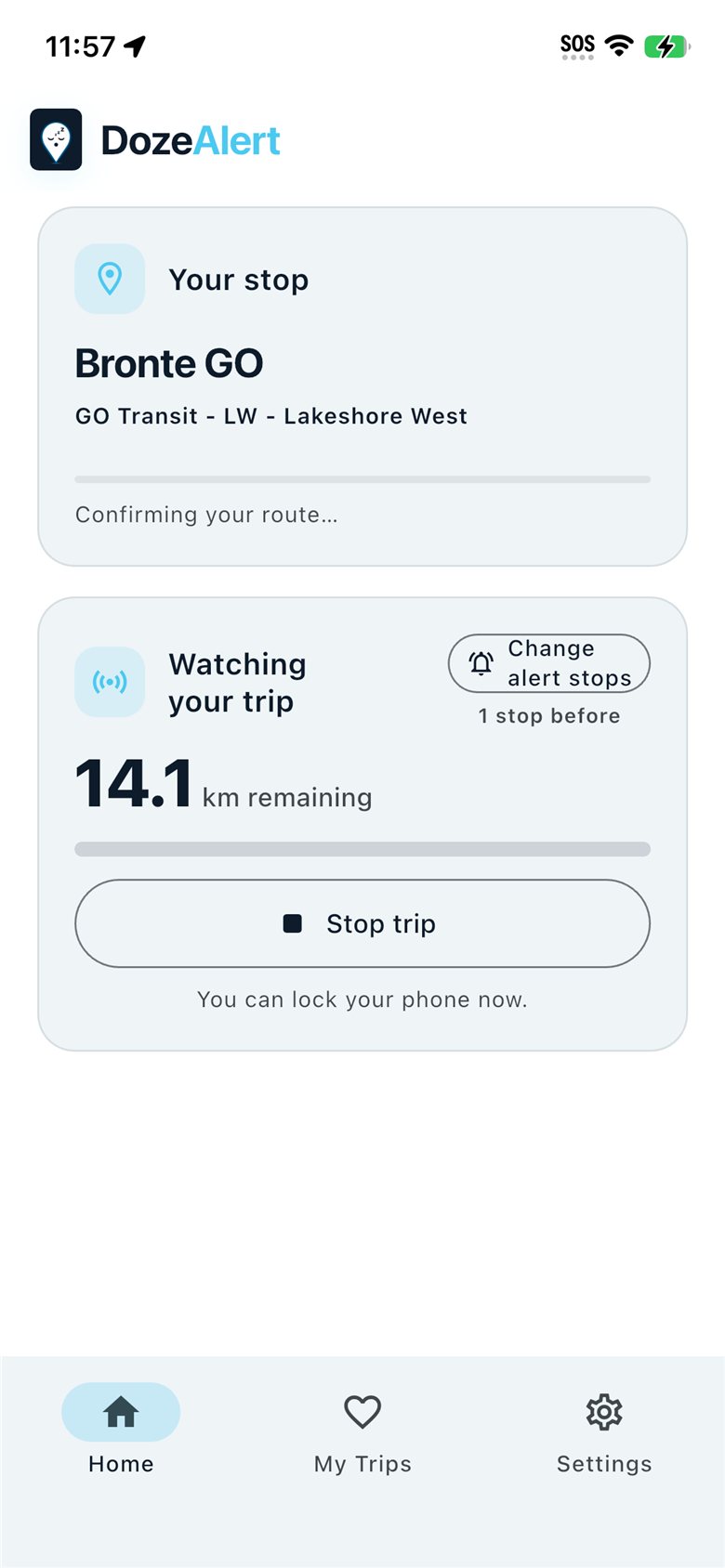
Watching your trip
See your stop, remaining distance, and wake timing while DozeAlert monitors. You can lock the phone and keep riding.
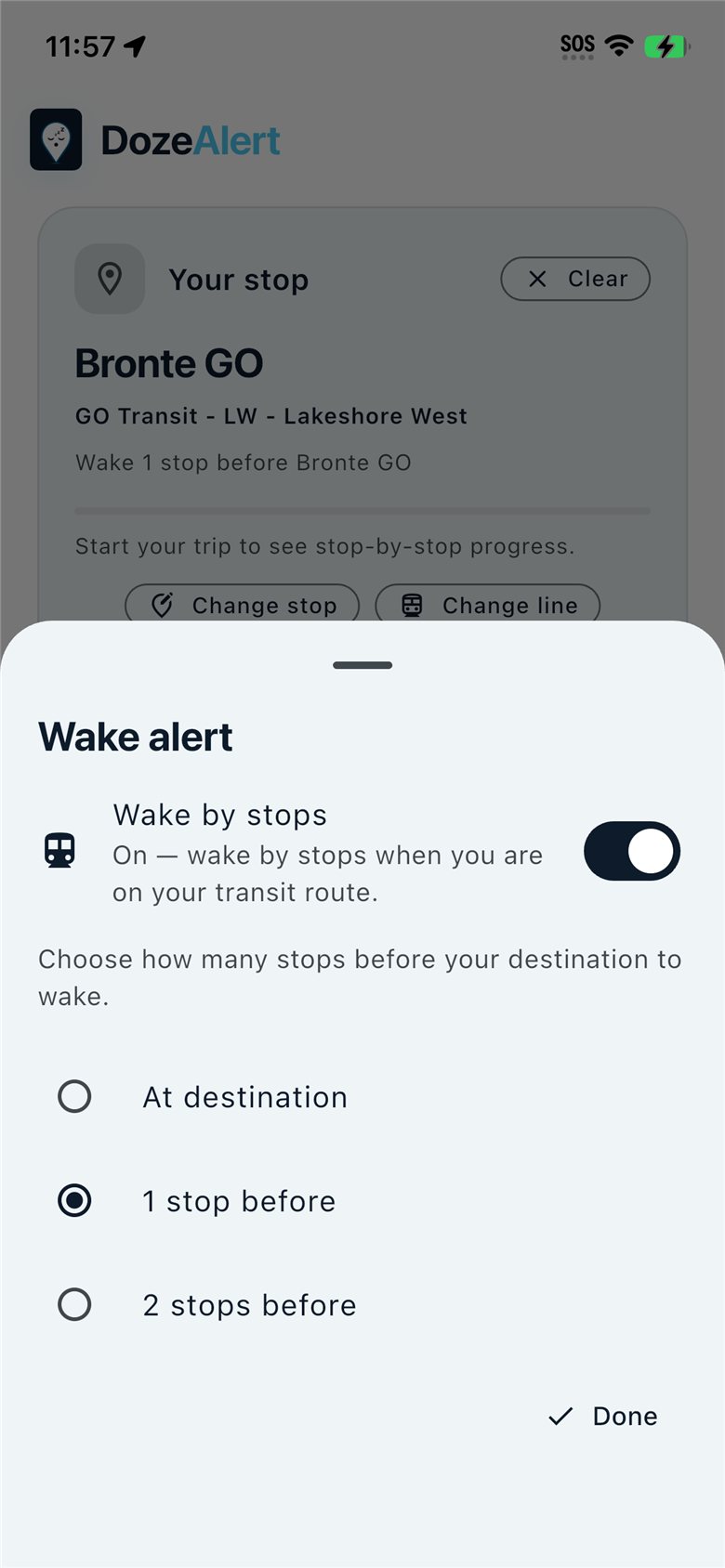
Wake by stops
Choose at destination, 1 stop before, or 2 stops before — tuned for how early you want to get ready.
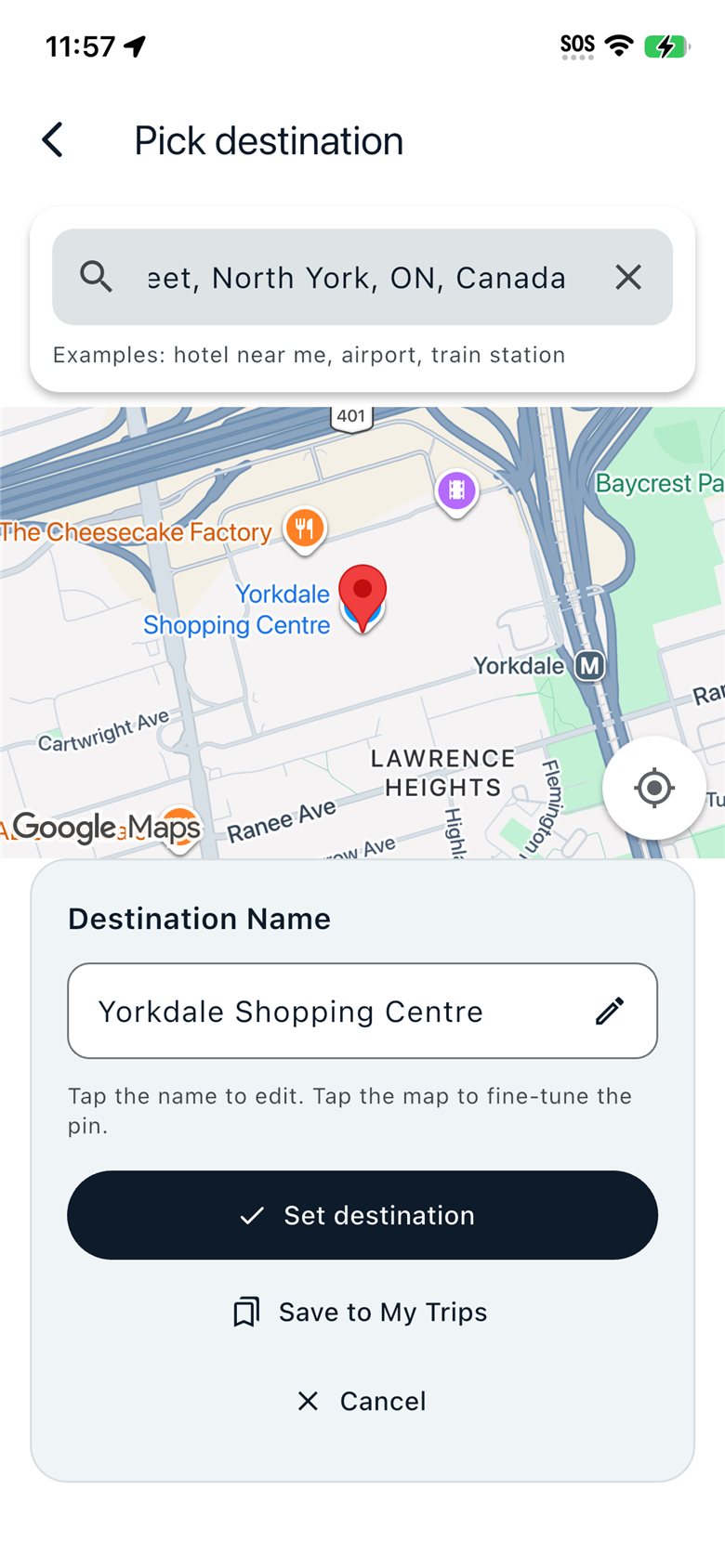
Map pin destinations
Not on transit? Search the map, drop a pin, and wake by distance for taxi, rideshare, or walking trips.
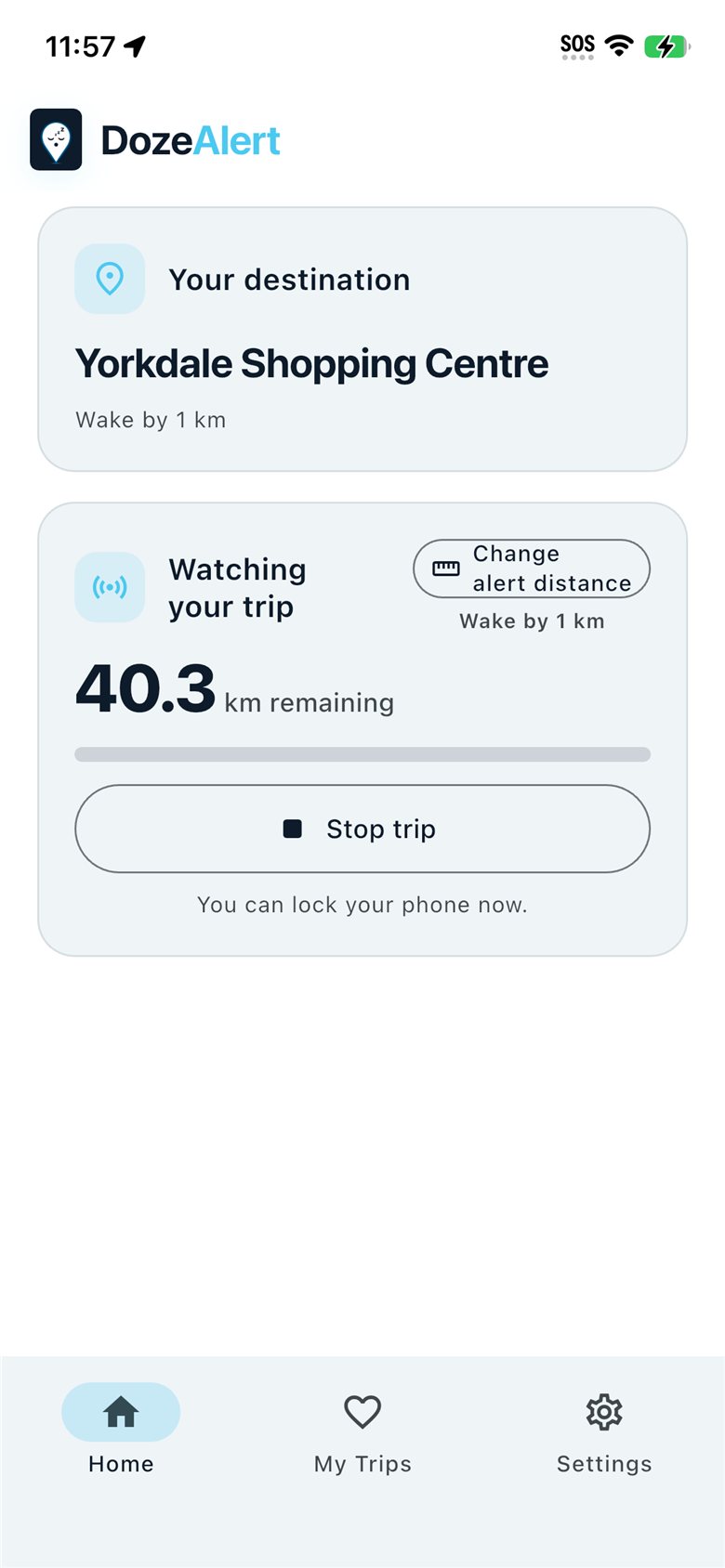
Distance wake-ups
When Transit Mode isn’t in play, DozeAlert tracks GPS distance to your pin and alerts you as you approach.
Get DozeAlert on the App Store for iPhone.
Includes Apple Watch companion — install from the iPhone Watch app after installing from the App Store. See Apple Watch tour.
Apple Watch companion
Phone-owned GPS and wake logic, wrist remote for status and controls — the same companion model as Wear OS. Ships inside the iPhone App Store app (watchOS 10+). No separate Watch App Store app to download.

Ready on your wrist
After you pick a stop on iPhone, the Watch shows destination and line. Tap Start trip from the Watch or the phone.

Watching while you rest
Status updates on the Watch while the iPhone keeps GPS and transit logic in the background. Stop the trip from either device.

Idle until you pick a stop
With no destination yet, the Watch points you back to the phone. Open on phone jumps to the iPhone app.

Phone shows the link
On iPhone Home, Watch connected confirms the companion is installed and talking to DozeAlert. Manage options under Settings → Apple Watch.
- GET READY full-screen alarm with repeating haptics
- Complication — RDY, N stp, WAKE, OFF on supported faces
- Optional “Open watch app when trip starts”
How to install
- Update DozeAlert from the App Store on the paired iPhone.
- Open the iPhone Watch app → My Watch.
- Under Available Apps, tap Install next to DozeAlert.
- Optional: add the DozeAlert complication to a face.
- Start a short trip; lock the phone and confirm the Watch still updates; test dismiss on wake.
Your commute alarm
A focused Home screen keeps your stop, wake timing, and Start button in one place.
Wake up before your stop
DozeAlert monitors your trip in the background and alerts you as you approach your destination — on transit with stop countdown, or by GPS distance for taxi, rideshare, and other trips.
Quick first-time setup
Three short steps: welcome, pick the transit you ride (one or more), then grant permissions with guided prompts. Stop lists download in the background for each agency you select.
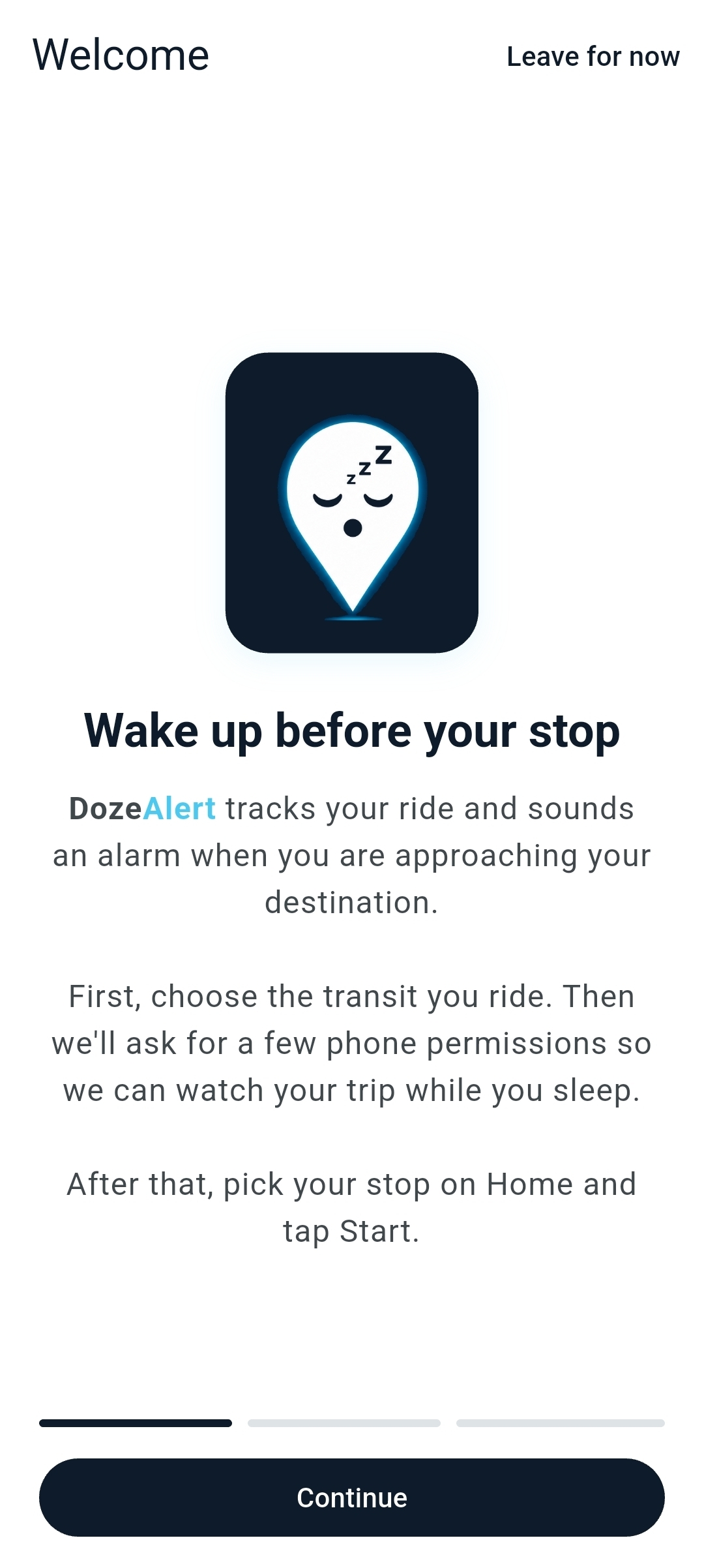
Welcome
A brief intro explains what DozeAlert does and what comes next — selecting transit, granting permissions, then picking your stop on Home and tapping Start.
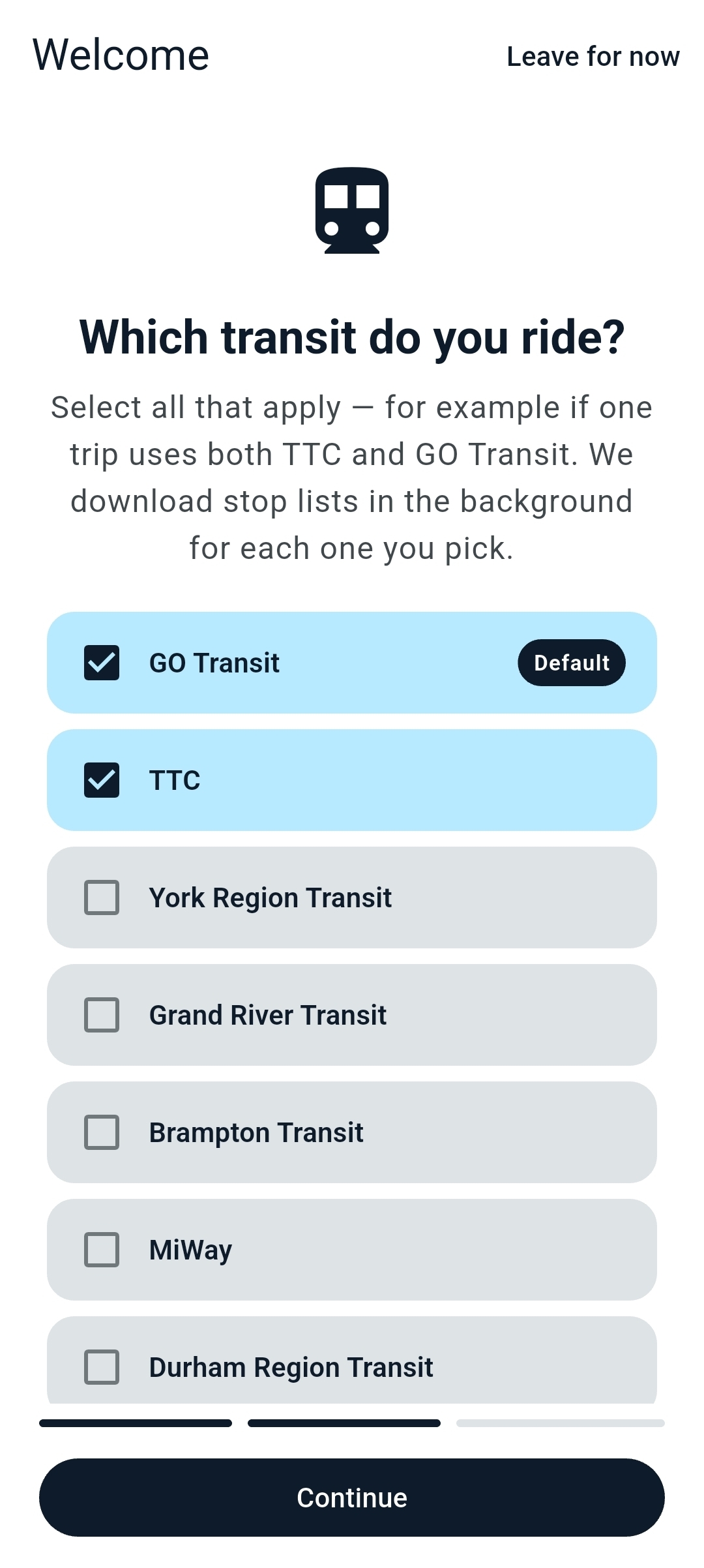
Pick your transit
Select all agencies you ride — for example more than one on the same day. Your default shows on Home first; change transit or line anytime from Pick your stop.

Guided permissions
A step-by-step checklist walks through GPS, location (while using + all the time), notifications, and battery. Plain-language prompts tell you exactly what to tap on each Android screen. Optional activity detection helps tell riding from waiting at a platform — off by default.
Pick your stop
Home is trip-first: pick where you get off, confirm transit and line if needed, then tap Start. A short three-step tour highlights the essentials on first visit.
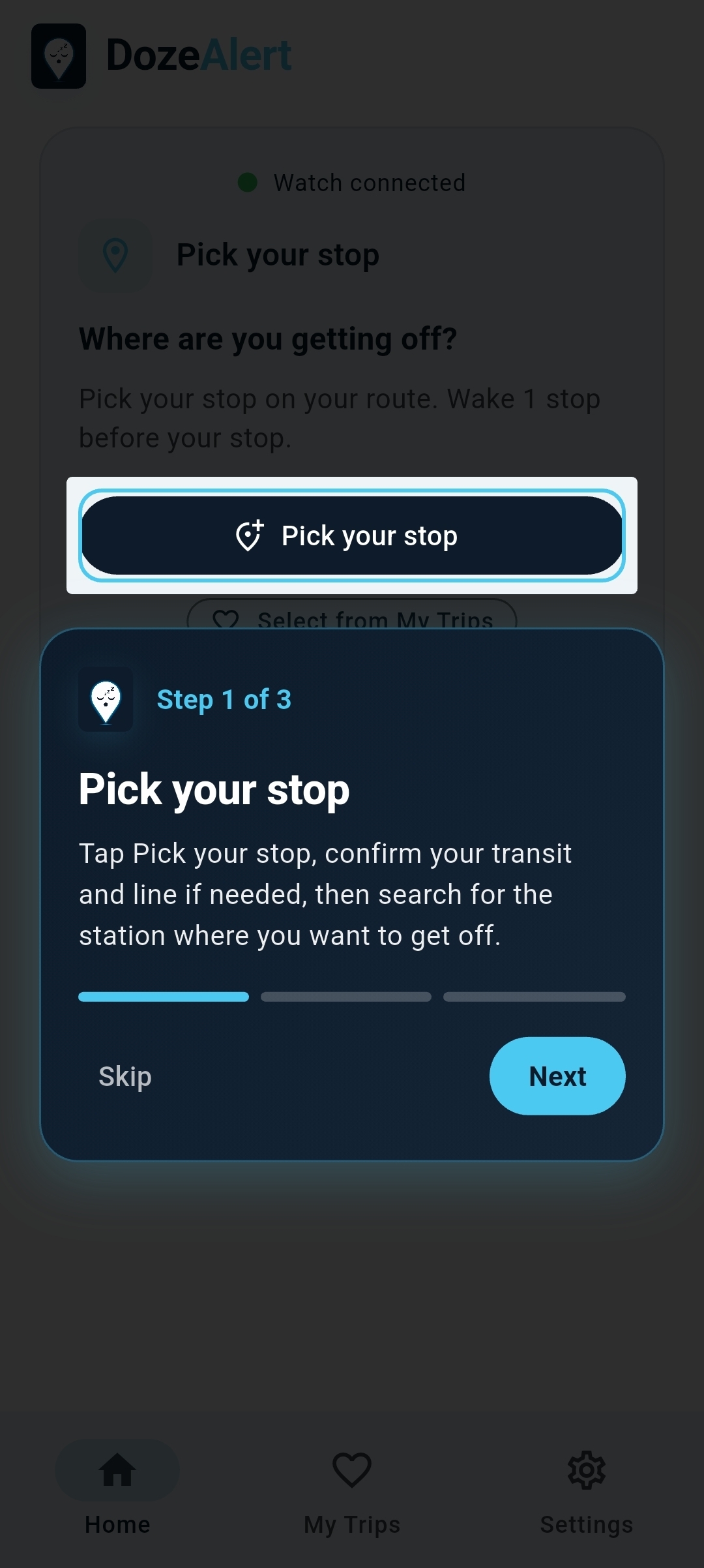
Guided Home tour
After setup, a three-step tour on Home shows where to pick your stop or destination, adjust wake timing, and start monitoring. Replay anytime from Settings → Show app tour.

Home
Pick your stop opens the route picker. Quick picks opens recent and saved stops. Your current transit and line show at the bottom of the card. A paired watch shows Watch connected when synced.

Transit & line
Confirm or change agency and route before picking a stop. Filter by bus or train and search by number or name from downloaded stop lists.

Pick a stop
Search and filter stops on your selected route, or browse all routes at a station. Downloaded GTFS data powers offline stop search and Transit Mode progress.
Start monitoring
Pick your stop, set wake timing, tap Start, then relax. DozeAlert tracks your trip and shows progress on Home and in your notification shade.

Start when you’re on board
With your stop and wake timing set, tap Start when you board. Keep volume on so the wake alert can reach you while the phone is locked.
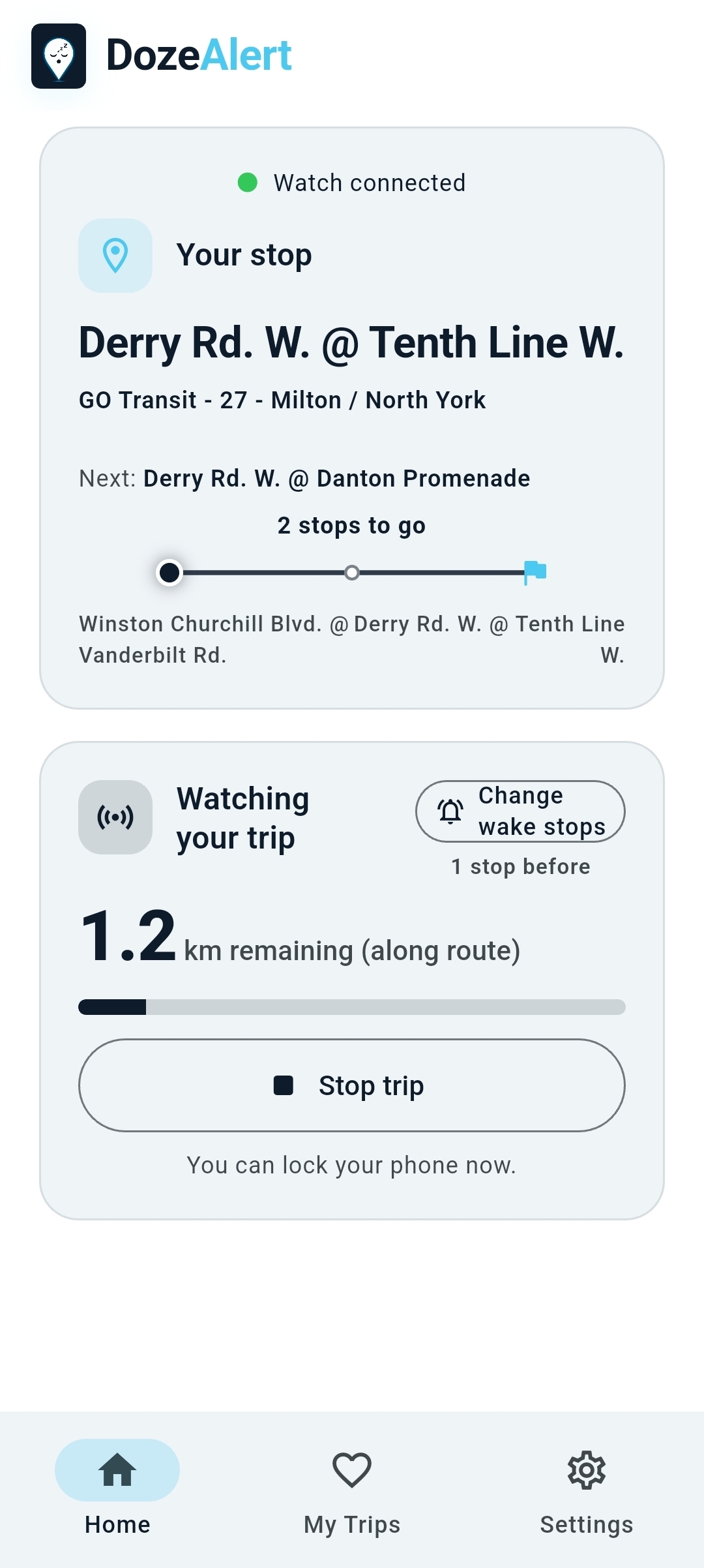
Stop-by-stop progress
With Transit Mode on, Home shows stops remaining, your next stop, and distance along the route. Wake timing uses stops when you are on your line, and falls back to your alert distance when GPS is the better signal. A wrong-direction banner gives a heads-up if your line may not match your trip.
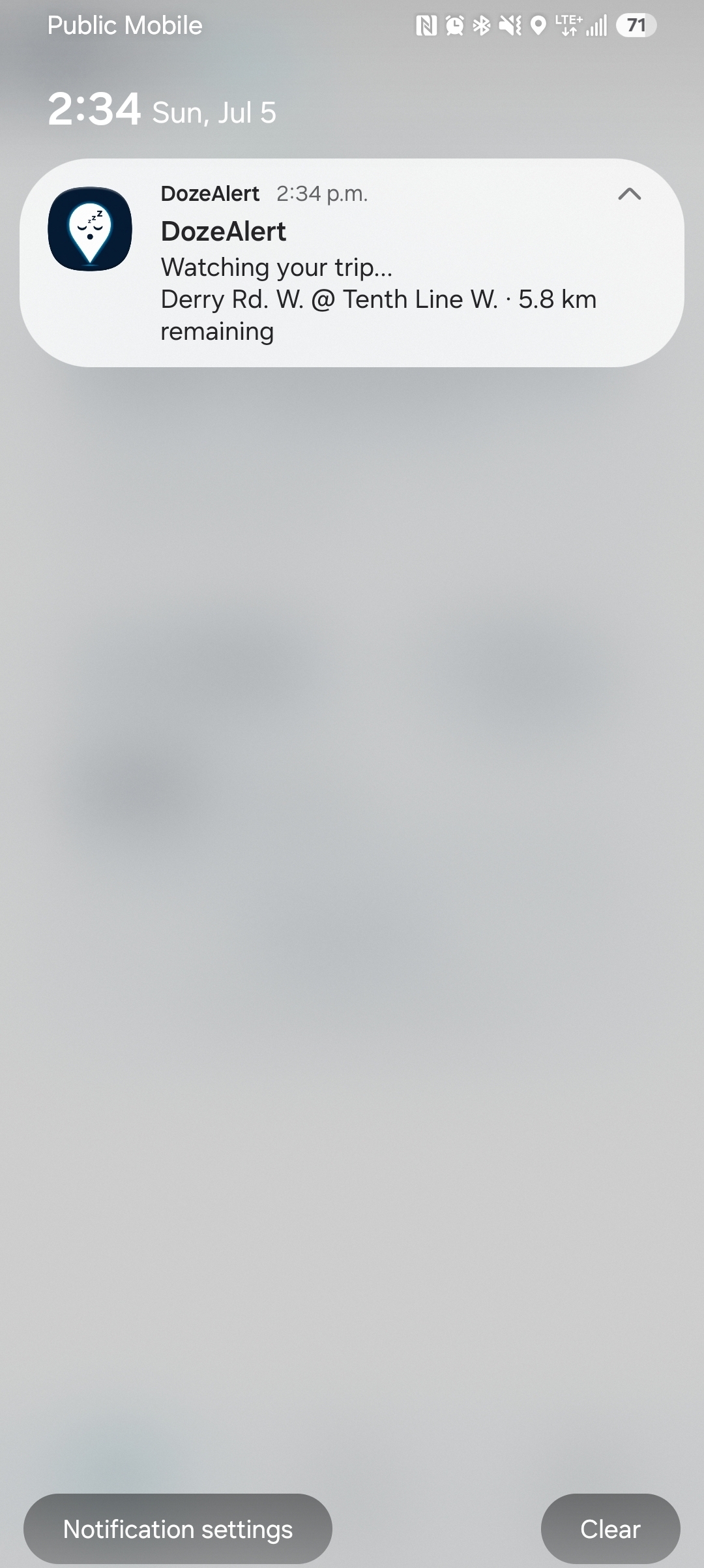
Background monitoring
An ongoing notification keeps you informed while the phone is locked — destination name and distance remaining at a glance. Lock your phone and rest.
Rideshare & any commute
Not every trip needs stop counting. Turn Transit Mode off and DozeAlert wakes you by straight-line distance to a map pin or searched address — ideal for taxi, Uber, Lyft, airport shuttles, and other rides where GPS is the signal.
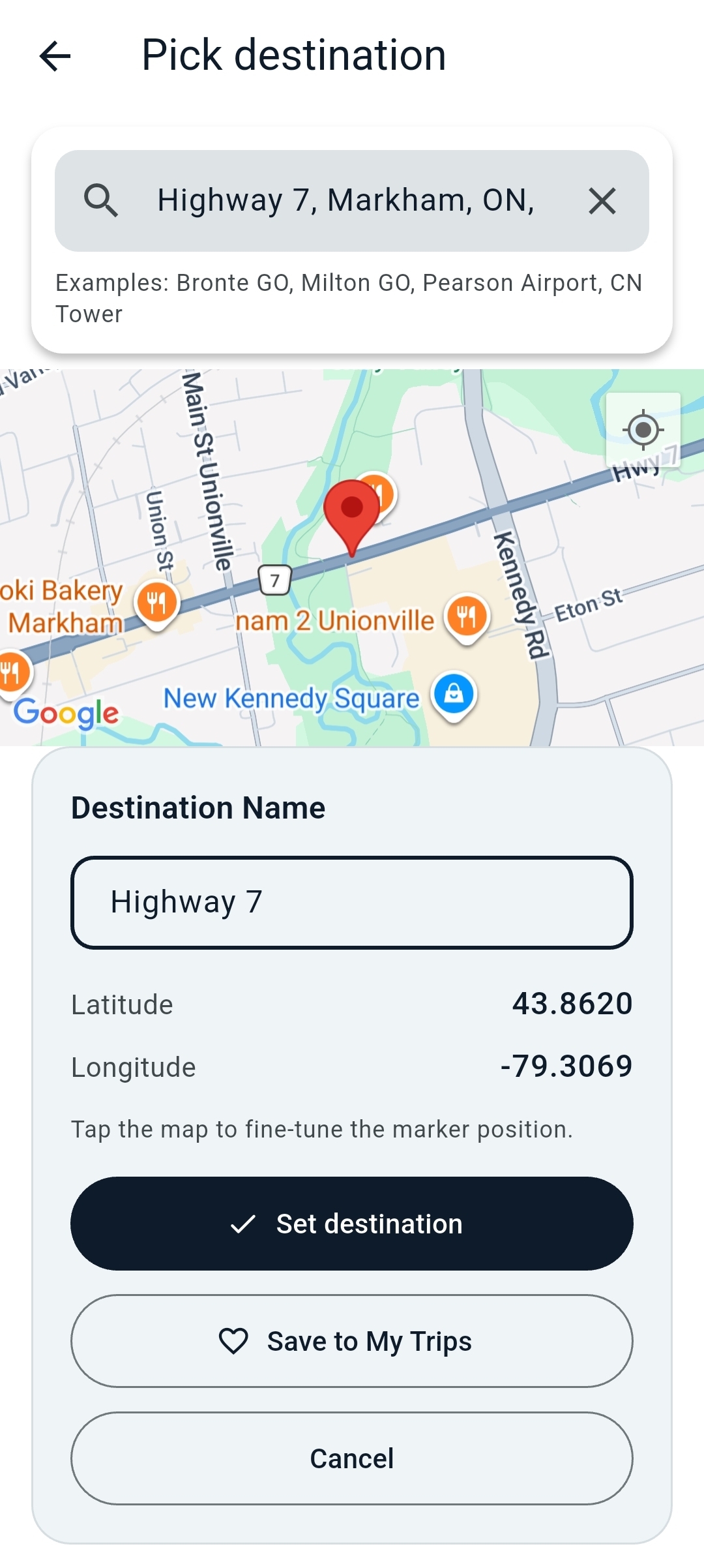
Pick any destination
Search an address or landmark, fine-tune the pin on the map, and set your destination. Save frequent drop-offs to My Trips for one-tap restarts on your next ride.
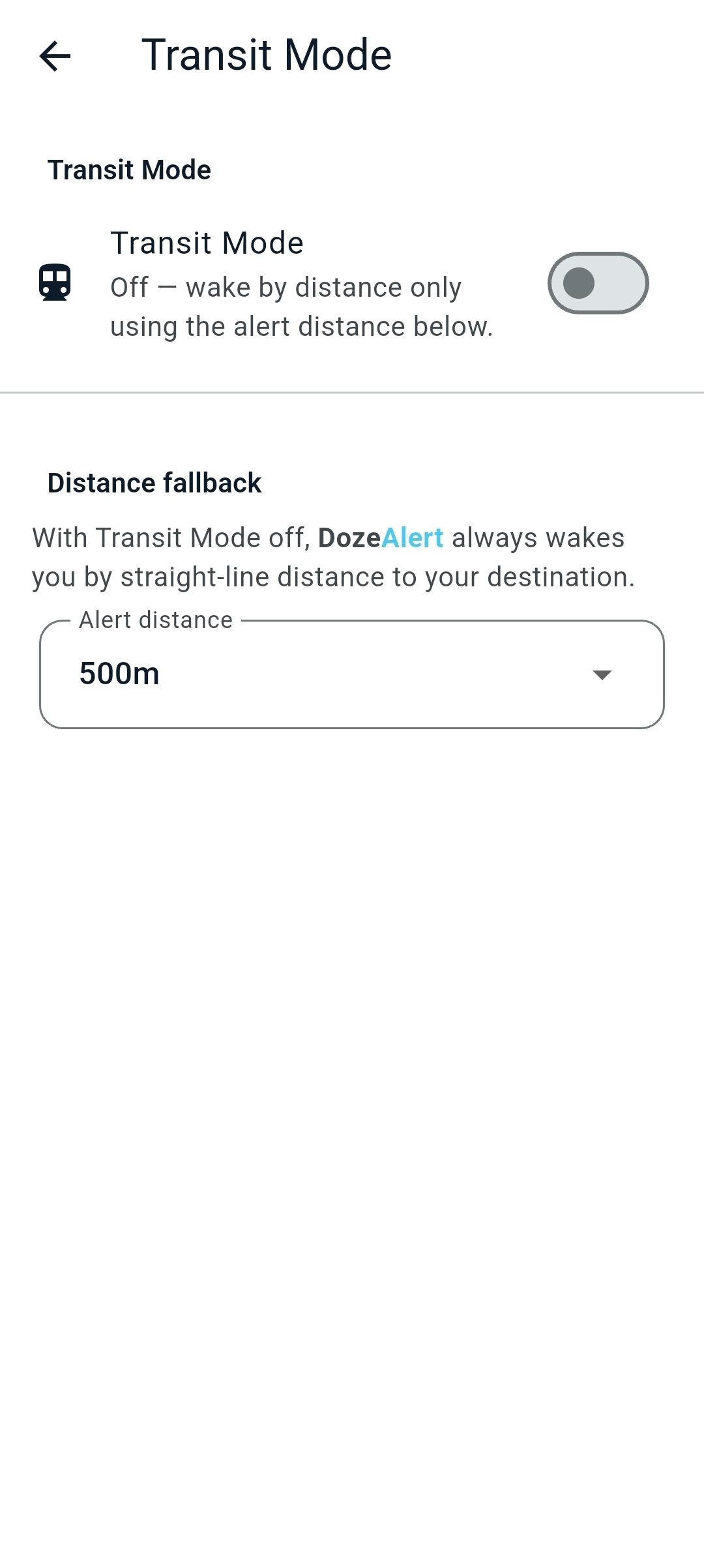
Wake by distance
In Settings → Transit → Transit Mode, turn Transit Mode off when you do not need stop countdown. Choose your alert distance — for example 500 m before you arrive.
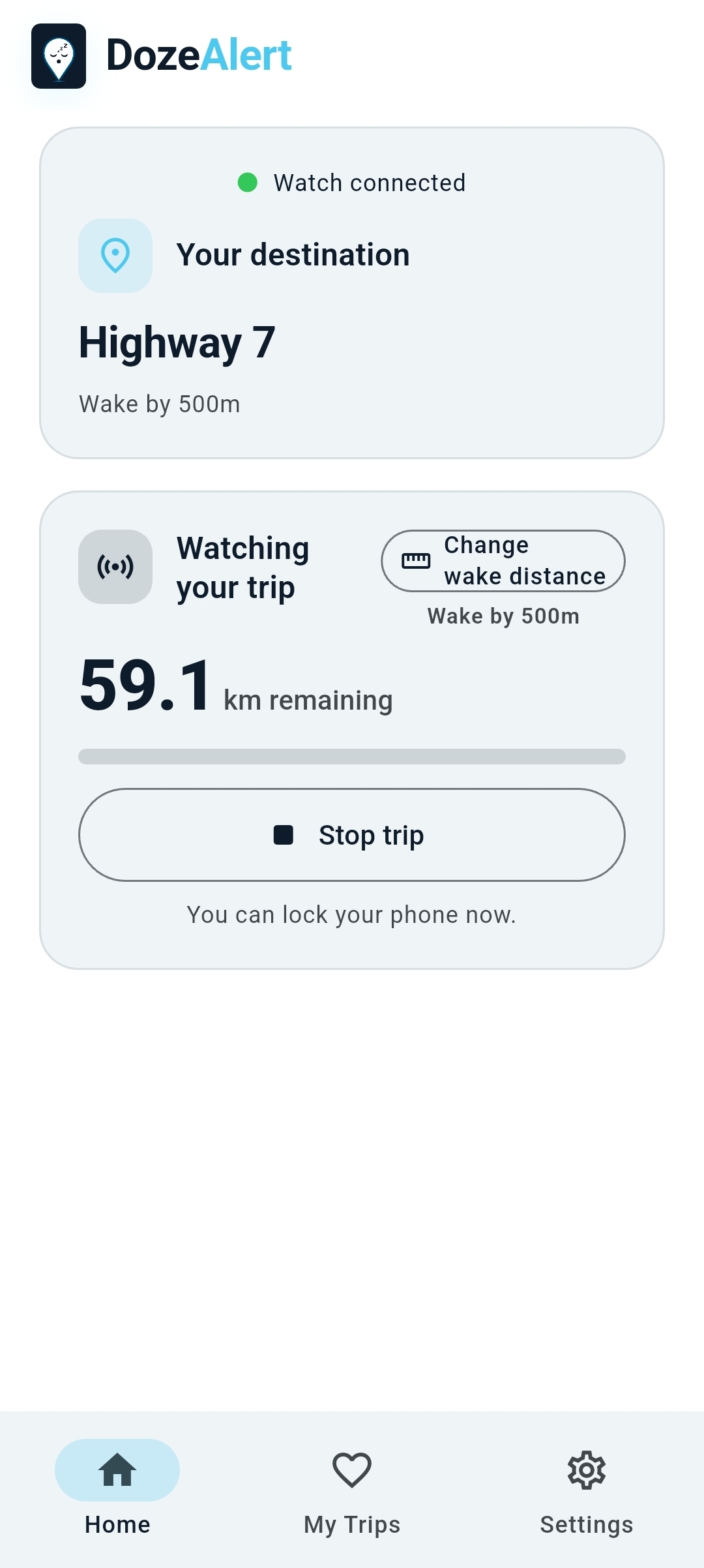
Distance on Home
While monitoring, Home shows how far you are from your destination and your wake distance. Lock your phone and rest — the same voice, vibration, and GET READY alerts work for every mode of commute.
My Trips
Saved stops and saved lines stay one tap away on the My Trips tab. Recent stops appear automatically for fast restarts.

Saved stops & lines
Save favorite stops and line pairs for quick access. Tap play on any item to set it and jump back to Home. Recent stops update as you ride.
- Saved stops with transit badges
- Saved lines for quick switching during transfers
- Recent stops for one-tap restarts
Settings
Transit stop downloads, Transit Mode timing, trip history, and alarm controls live in Settings. No ads, no data sale.

Settings hub
Theme, permissions, transit mode, location accuracy, and alarm sound all live under Settings. Trip history and missed trips are at the bottom under Trip history.

Wake alert
Wake by stops when you are on your transit route. Choose at destination, 1 stop before, or 2 stops before. A distance fallback handles map-pin destinations or rides off the route.
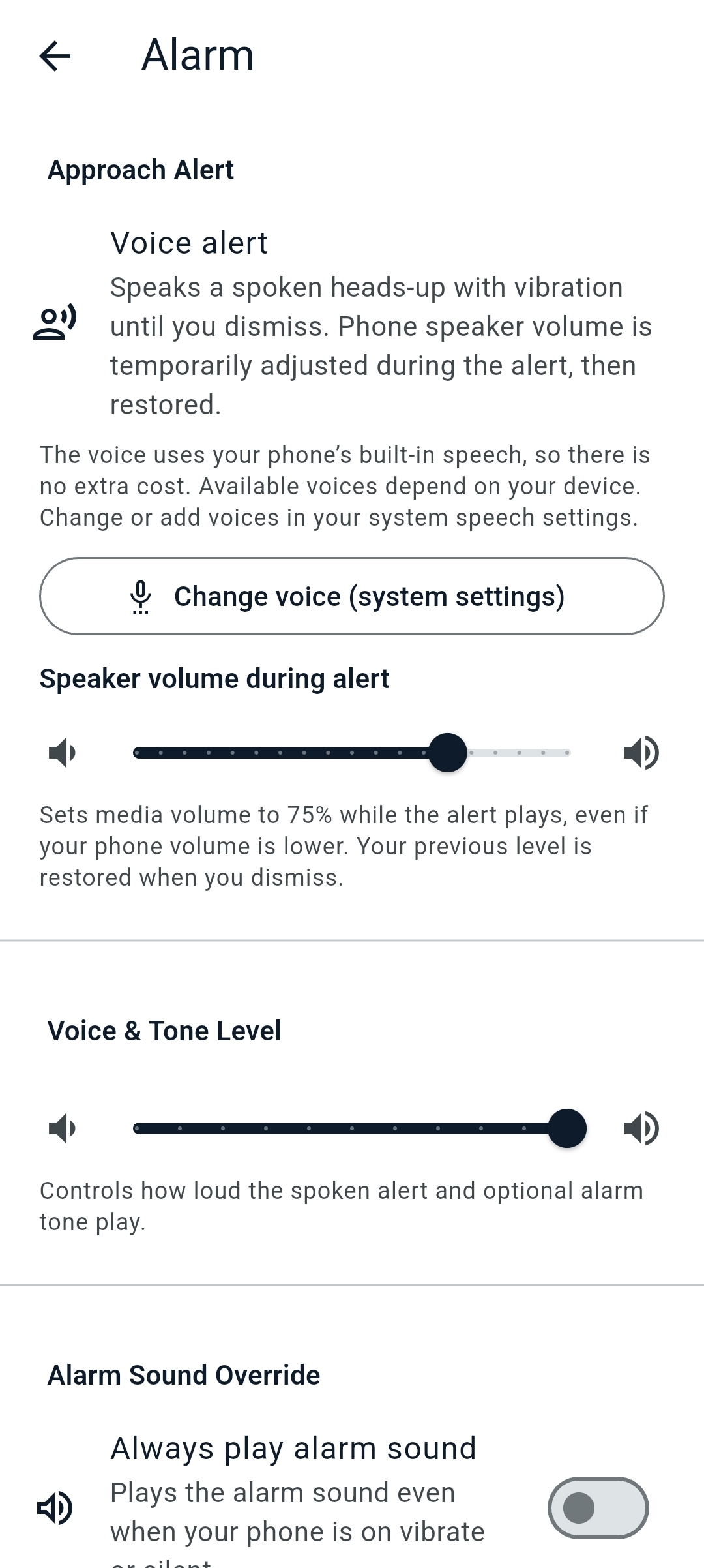
Approach alerts
A spoken “Heads up! Approaching destination.” plays with vibration until you dismiss. Adjust speaker volume during the alert and control voice and tone levels separately. Optionally force the alarm sound even when the phone is on silent.
Wear OS companion
A paired watch shows live trip status, lets you start or stop monitoring, and repeats vibration until you dismiss a wake-up alert. Add a watch face complication for RDY, stop count, or OFF at a glance. GPS and permissions stay on your phone.

Branded launch
Cold start shows the DozeAlert pin on a true black splash — the same branded launch experience Play expects for Wear OS apps.
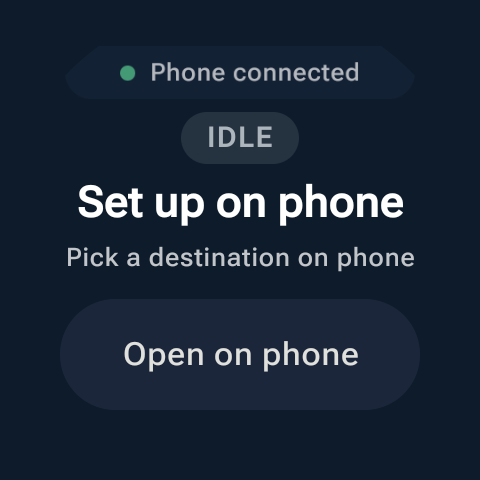
Set up on phone
When no destination is selected, the watch shows Phone connected and an Open on phone shortcut. Pick a stop on the phone first — the watch syncs over Bluetooth.

Ready when you are
With a destination set, the watch shows Ready, your stop or line, and Start trip. Scrollable screens show a Wear scrollbar so you can see more actions (including Open on phone) without guessing.
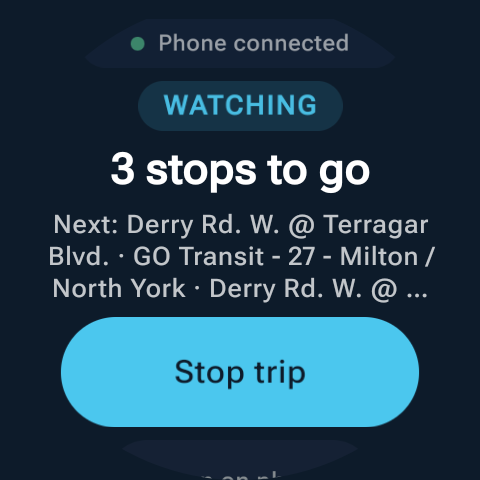
Watching your trip
While monitoring, see stops remaining or distance (Transit Mode). Tap Stop trip to end early. Prefer the watch face? Use the DozeAlert complication for status without opening the app.
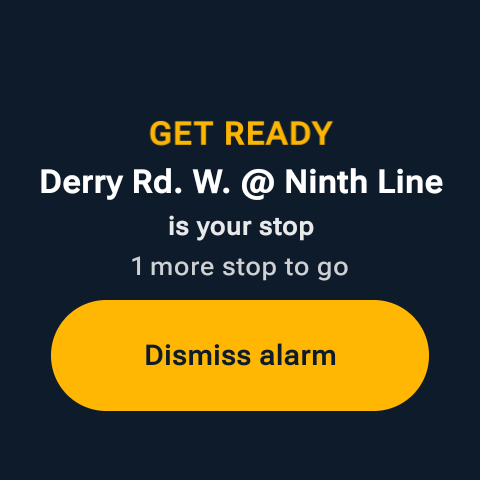
GET READY on your wrist
When you approach your stop, the watch shows GET READY with your destination and vibrates until you tap Dismiss alarm on the watch or phone.
Watch face complication
Add DozeAlert to a supported watch face. When you start a trip on your phone, the complication updates on your wrist — no need to open the Wear app for a quick status check. Apple Watch complications use the same short labels (RDY, N stp, WAKE, OFF).
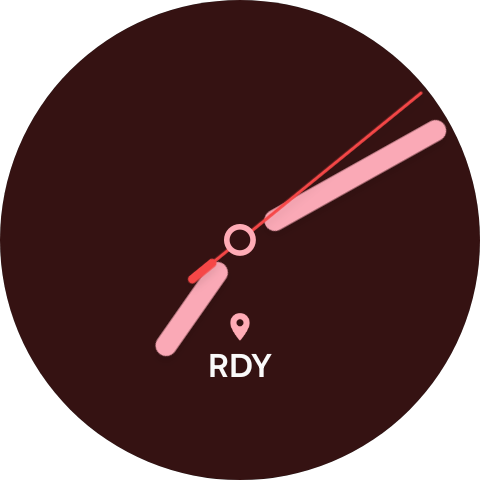
Ready on the dial
With a destination set (not yet monitoring), the complication shows the DozeAlert pin and RDY. Customize your watch face and pick DozeAlert for a SHORT_TEXT slot.
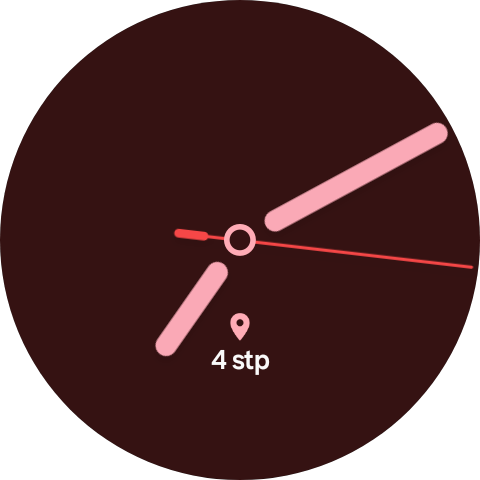
Stops at a glance
While DozeAlert is watching your trip, see stop count (for example 4 stp) or remaining distance. Status also covers OFF, ON, WAKE, and more as your trip progresses.
Reliable wake alerts
Voice, vibration, and optional alarm tone wake you before you miss your stop. Volume is boosted during the alert, then restored when you dismiss.
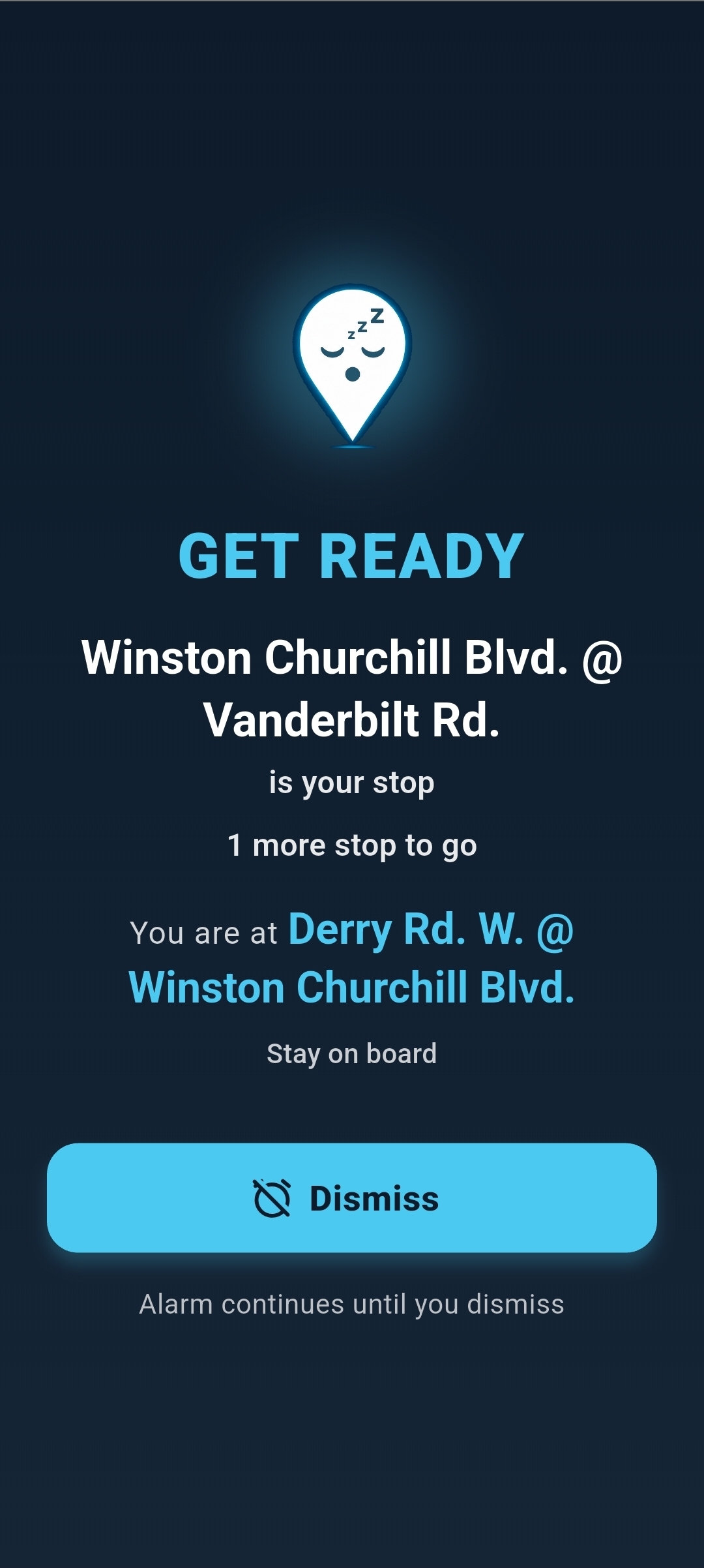
GET READY
A full-screen wake alert shows your stop, how many stops remain, and where you are now. The alarm continues until you dismiss — on phone or watch.
Ready to try it?
Get DozeAlert on Google Play for Android or the App Store for iPhone (Apple Watch included), and set your first destination in under a minute.